Camera OCR: capture printed text and copy it on your computer
PaiPaiTie turns text from books, paper documents and labels into text you can copy. Capture, select and paste on your Mac or Windows PC to reduce manual typing.
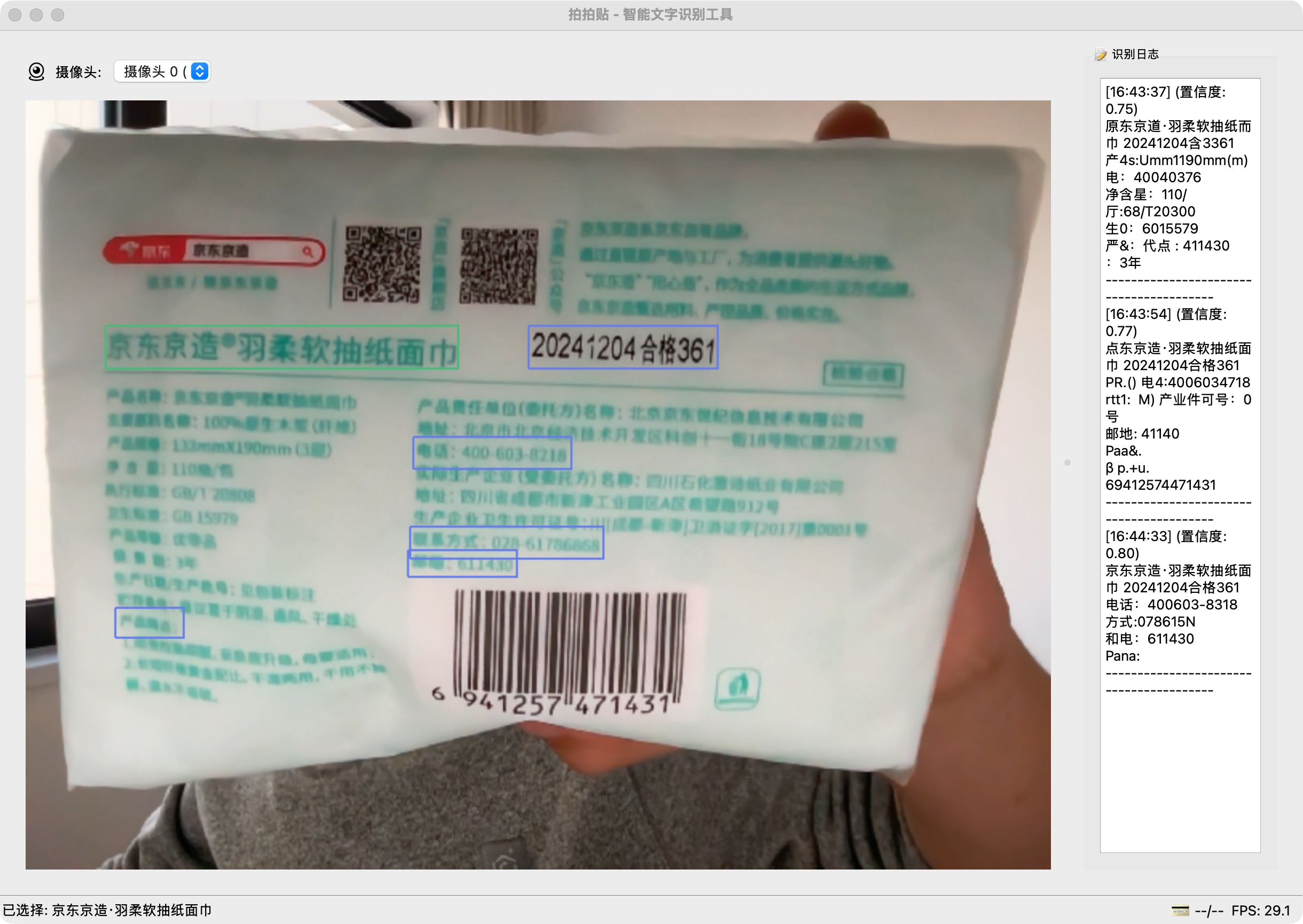
From camera capture to text you can use
Capture text with your camera
Point your computer camera at printed text and recognize it without first taking a phone photo and transferring it.
Select the text you need
Choose the content you need from the recognition results and copy just that text.
Local OCR on your device
The macOS and Windows apps support local text recognition without requiring an app account login.
Optional cloud OCR
Use cloud recognition when needed. This mode requires an internet connection and sends the content to the server.
Copy and paste into your work
Copy recognized text to the clipboard, then paste it into notes, documents, spreadsheets or web forms.
Desktop apps for Mac and Windows
Install from the Mac App Store or Microsoft Store to capture and work with text on your computer.
How to extract text with your computer camera
Install the app and allow camera access
Download PaiPaiTie for your operating system, open it and grant camera permission.
Frame the text and capture it
Keep the page flat and evenly lit. Check that the text is clear in the preview, then capture and recognize it.
Review, copy and paste
Select the text you need, check numbers, punctuation and line breaks, then paste it into your destination app.
What can you capture with camera OCR?
Book excerpts and study notes
Capture a passage from a book and copy it into your reading notes, reducing the need to type it by hand.
Paper documents and office work
Move text from paper documents into digital documents or spreadsheets, then adjust the formatting as needed.
Labels, reference numbers and short text
Extract model numbers, codes and other short text from packaging or labels. Check each letter and digit before using it.
Download the PaiPaiTie camera OCR app
Install the macOS or Windows app from its app store.
Linux download version: 1.0.1
Camera OCR questions
Is PaiPaiTie an online OCR website?
PaiPaiTie is a desktop OCR app that you install. This page explains the features, workflow and downloads; text recognition takes place in the app on your computer.
Does local OCR need internet access or an account?
Local OCR in the macOS and Windows apps runs on your device without requiring an app account login. Cloud OCR needs a connection and sends the content for recognition. See the privacy policy for details.
Why is some text recognized incorrectly?
Blur, glare, page angle, font and text size can affect recognition. Improve the lighting, keep the page flat and capture again. Review easily confused characters before using the result.
How much does cloud OCR cost?
Optional cloud OCR is available through subscriptions or quota packs. Check the in-app purchase page for current pricing and allowances. Contact support for purchase, restoration or quota issues.
Need more help? Support · Privacy policy